
We are putting the finishing touches on our MCP server, which is built into the IDE itself, making for smooth integration with AI providers such as Antrophic. We are using Claude code ourselves at the moment, but we are also busy training our own LLM models from scratch.
MCP server?
If you are new to AI: an MCP server is a REST server that an AI model use to request information. The MCP implements functions for reading units, adding units, indexing the RTL and files, accessing documentation -or even creating, opening and compiling projects. The AI will also receive any error messages from the compiler so that it can see when something went wrong – and jump straight to fixing it.
Hosting your own AI
Using Claude Code is surprisingly affordable considering the amount of code it can churn out for you in record time. But the more complex the challenges are, the more intensive and token hungry the AI will be. Commercial systems like Claude can burn through $100 in record time if you are not careful, so there is definitively an argument for running a ‘lesser model’ on your own hardware.
Depending on what type of applications you work on, or what you need help with, there are thankfully some free alternatives. One of them is to run the AI locally on the same computer, or on another computer connected to your network.
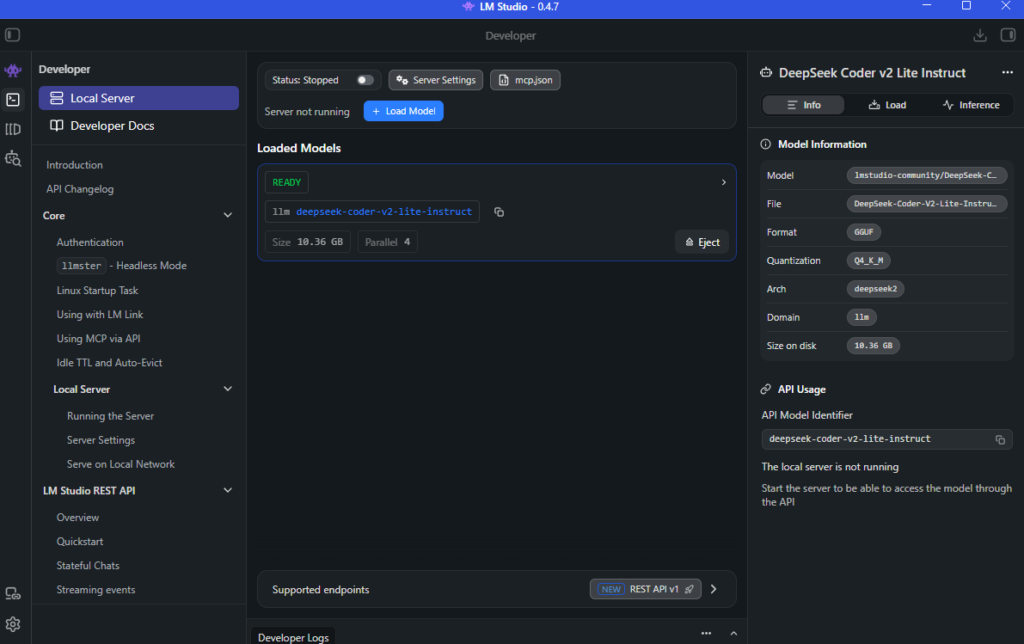
In my case I have a powerful laptop that I work on in my home office, but I also have a powerful stationary PC in our guestroom that is rarely used. The stationary PC has a much more powerful GPU than my laptop, and will run the AI models better than my laptop ever could.
What you need
The easiest way to host your own AI is, in my view, to use LM Studio. This is a free desktop client and server that runs on Mac, Linux and Windows. It allows for direct download of LLM models from huggingface (the website where the latest and greatest open source models can be found) via the GUI, and it takes care of drivers for your particular GPU and CPU configuration (e.g differences between AMD and Intel for example).
You really don’t need to be AI savvy to use it, it’s literally select a model, download, run. It is the Apple iPhone of LLM runtimes to put it like that.
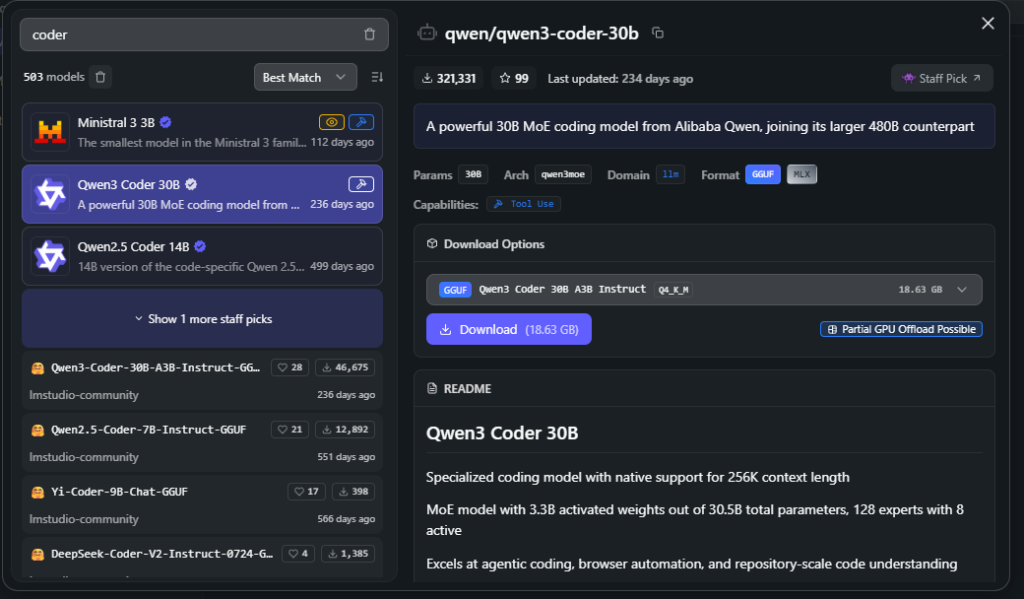
Another cool feature of LM Studio is that it supports MCP registration (which is important when it comes to Quartex Pascal). So once you have downloaded a model, you can register the QTX MCP in LM Studio – and voila! LM Studio can now talk directly to Quartex Pascal. Granted, it’s not going to be as smooth as installing Claude code, but if you just want to try something out and get your feet warm, LM Studio is the way to go.
Broader scenarios
I mentioned that I have a scenario where I actually have 2 machines, and that it would be nice if I could use my stationary machine to do the heavy lifting, while I enjoy coding on my laptop This is also possible with LM Studio, but with a few caveats:
- You can access LM Studio as a web service. This requires a web UI and is somewhat limited. It will be a bit like talking to Grok or ChatGPT, not quite the same as running the AI via the commandline.
- You can access LM Studio via the commandline, using the tool “lms” (downloadable as a separate install. You dont need this if you plan to just run locally, the LM Studio installer gives you this automatically). This is the magic bullet that makes local AI sane, and it’s more or less the same as Claude code. Well, except you get to decide what machine you host the model on, and you dont need a subscription.
So for my scenario the recipe becomes easy:
- Install LMS Studio on my stationary PC
- Download a suitable LLM model and run that
- Enable the server (see config window)
- Register Quartex Pascal MCP server, use machine name rather than IP so that it asks your router for the IP every time. That way it wont care if the router gives me a new IP between workdays.
- Install lms on my laptop
- Edit the appdata\local\lms\lms.config file, add a section for my stationary PC:
[servers]
lm_studio = tcp://my-stationary-pc-name:port - open up a command-line window and type “lms -chat”. It should connect to the server straight away since you only have one server registered
Final thoughts
Getting to grips with AI is getting much easier, regardless if you use an external provider, or roll your own.
We hope this article was useful. Make sure to check back soon as the IDE with MCP support should be out later today!